Colors
The Colors page is organized into the following sections:
-
Color Options: In this panel, you can view color sets and their properties. Use the toolbar to edit, delete, copy, and apply a color set.
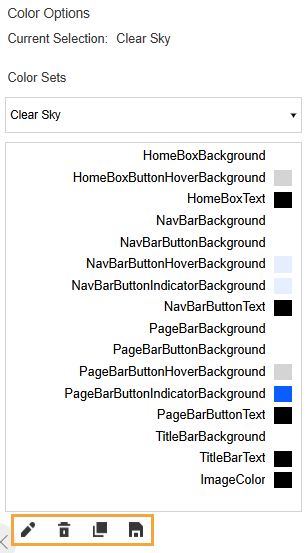
See the following sections:
-
Preview: This tab displays a preview of the end-user view with the saved color set applied.
In the upper right, you can set your preference to turn the preview on (click the Show Preview
 icon) or off (click the Hide Preview
  icon).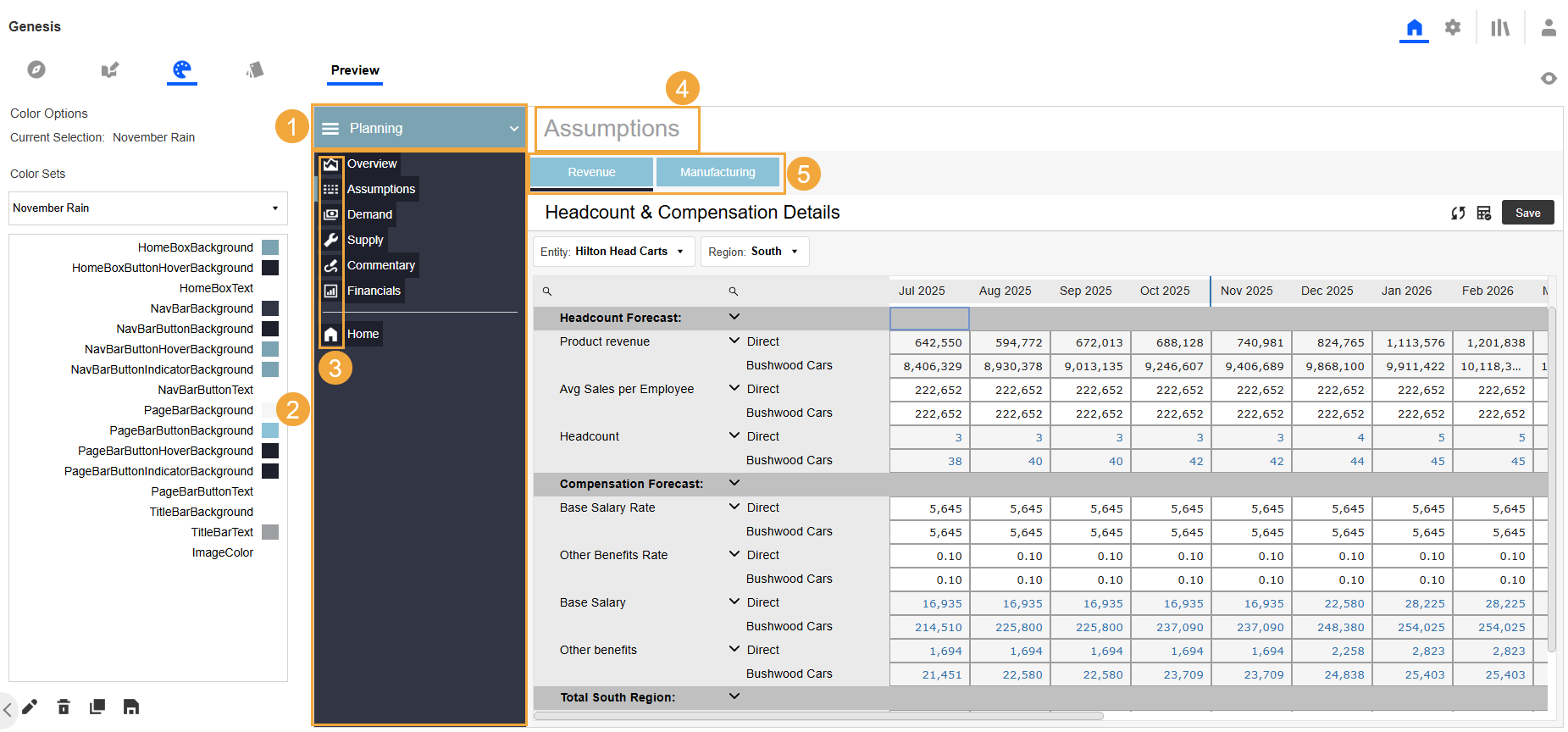
-
Home box
-
Navigation bar
-
Images
-
Title bar
-
Page bar
-
Color Set Properties
These properties set the color theme in the Genesis instance. You can edit these properties as needed. See Edit a Color Set.
Home Box
- HomeBoxBackground: Background color of the Application Group drop-down menu
-
HomeBoxButtonHoverBackground: Color change when you hover over an item in the Application Group drop-down menu
-
HomeBoxText: Text color of items in the Application Group drop-down menu
Navigation Bar
- NavBarBackground: Background color of the navigation bar
-
NavBarButtonBackground: Background color of items on the navigation bar
-
NavBarButtonHoverBackground: Color change when you hover over an item on the navigation bar
-
NavBarButtonIndicatorBackground: Color of the indicator bar that highlights a selected item on the navigation bar
-
NavBarButtonText: Text color of items on the navigation bar
See Navigation Bar.
Page Bar
- PageBarBackground: Background color of the page bar
-
PageBarButtonBackground: Background color of tabs on the page bar
-
PageBarButtonHoverBackground: Color change when you hover over a tab on the page bar
-
PageBarButtonIndicatorBackground: Color of the indicator bar that highlights a selected item on the page bar
-
PageBarButtonText: Text color of tabs on the page bar
See Page Bar.
Title Bar
- TitleBarBackground: Background color of the title bar
-
TitleBarText: Text color of items on the title bar
Image
-
ImageColor: Color of images on the navigation and page bars
Apply a Color Set
Apply a color set to update the Genesis instance with the selected colors.
-
From the Color Sets drop-down menu, select an option. The properties display in the Color Options panel. See Color Set Properties.
-
Click the Apply Selected ColorSet to Application Foundation icon to apply the color set and view the updates in the Preview tab.

Edit a Color Set
-
From the Color Sets drop-down menu, select an option.
-
Click the Edit the Selected ColorSet icon.

-
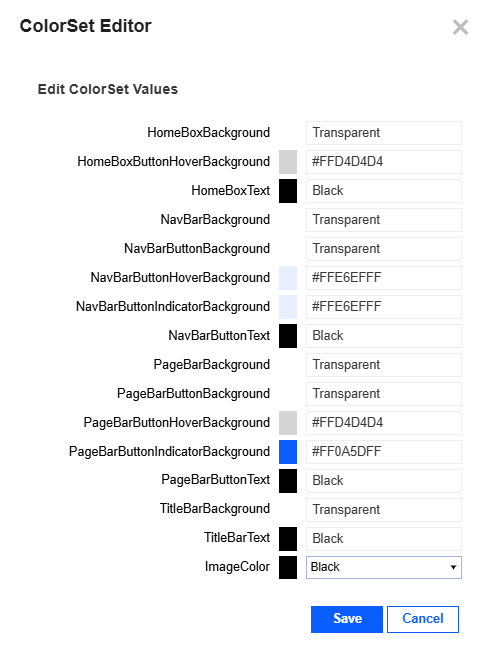
On the ColorSet Editor slide-out panel, in the field for each option, update the properties. See Color Set Properties.
-
Enter hex color values using the format #FF000000 or a OneStream color name, which is a name from the standard list of colors used in OneStream, for example, for a button component.
-
To make an option transparent, type Transparent.
-
To update ImageColor, from the drop-down menu, select Black or White.
-
-
Click the Save button.
TIP: Apply a color set to update the Genesis instance. See Apply a Color Set.
Delete a Color Set
You can delete color sets that are no longer needed to keep the list updated.
CAUTION: If you delete a color set, the action cannot be reversed.
To delete a color set, follow these steps:
-
From the Color Sets drop-down menu, select an option.
-
Click the Delete the Selected ColorSet icon.

-
In the Confirm Delete slide-out panel, click the Delete button.
Copy a Color Set
Copy a color set to create a new color set based on an existing one.
-
From the Color Sets drop-down menu, select an option.
-
Click the Copy the Selected ColorSet icon.

-
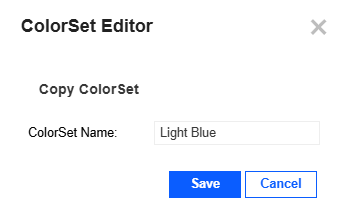
On the ColorSet Editor slide-out panel, enter a unique name for the new color set.
-
Click the Save button.
-
(Optional) Update the new color set. See Edit a Color Set.
TIP: Apply a color set to update the Genesis instance. See Apply a Color Set.


