Styles
The Styles page is organized in the following sections:
-
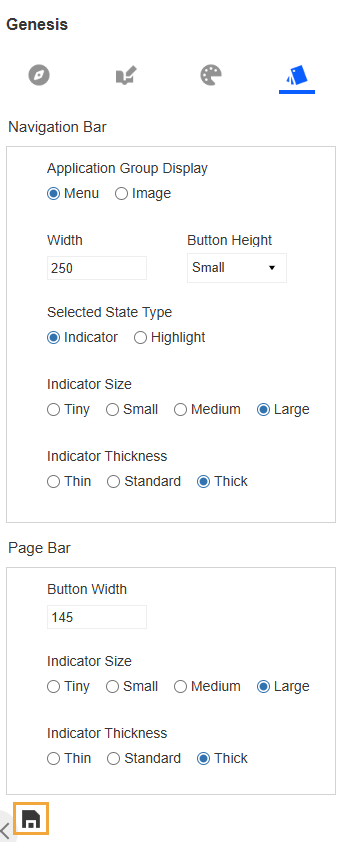
In the left panel, you can view and configure style settings and apply them to the navigation bar and page bar.
-
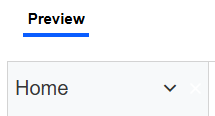
Preview: This tab displays a preview of the end-user view with the selected style settings applied to the navigation bar and page bar.
In the upper right, you can set your preference to turn the preview on (click the Show Preview
 icon) or off (click the Hide Preview
  icon).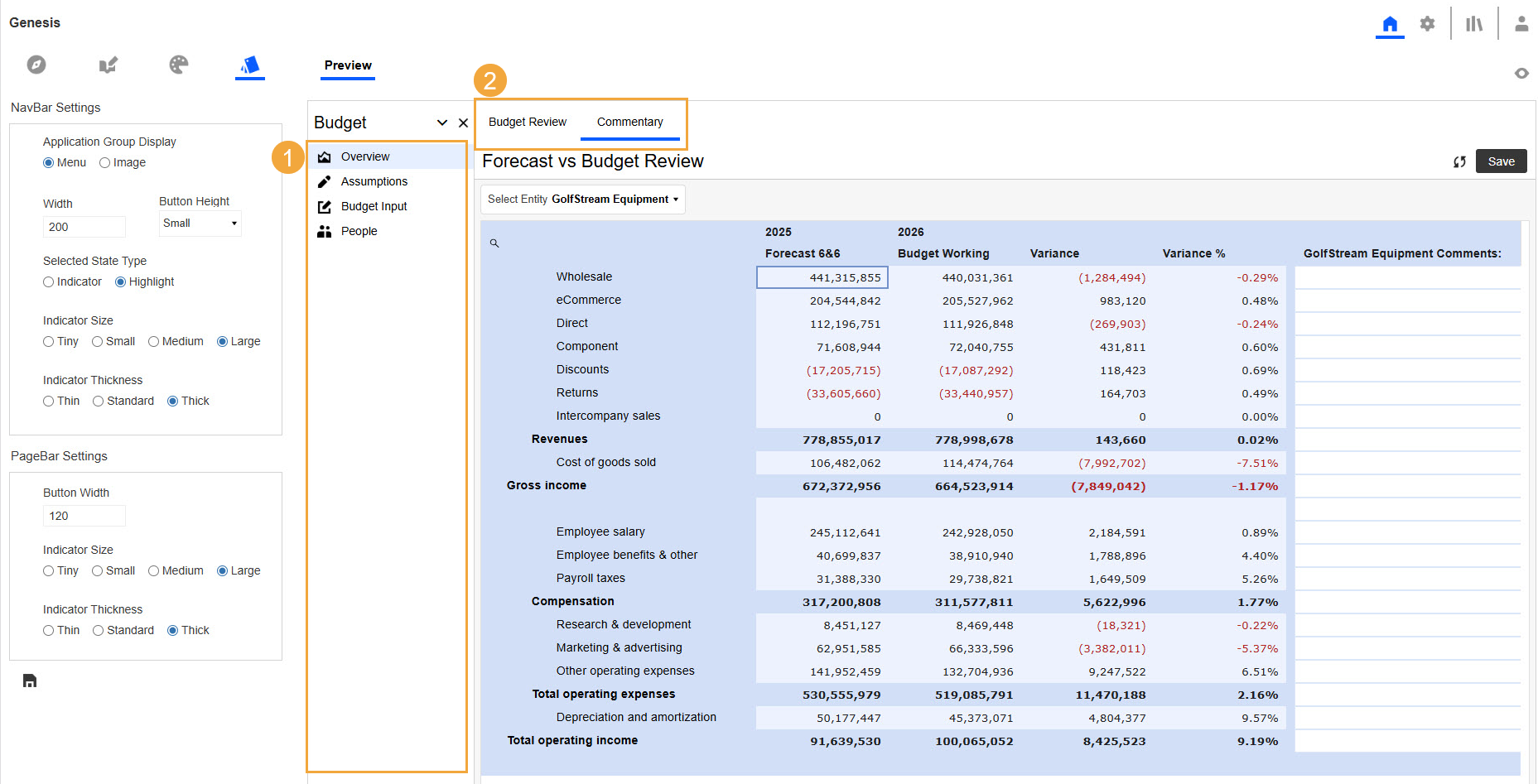
-
Navigation bar is displayed on the left side of the page.
-
Page bar is displayed across the top of the page.
-
Configure Style Settings
Configure style settings before applying them to a Genesis instance.
Navigation Bar
These settings customize the display of the Application Groups and Navigation Groups in the navigation bar.
Application Group Display
-
Menu: Select to display the Application Group description in the navigation bar drop-down menu.
-
Image: Select to display a menu image for the Application Group in the navigation bar drop-down menu. Use this option to reduce the size of the navigation bar.
Width: Enter the number of pixels to set the width of the navigation bar.
Button Height: Select the height of the space for each item in the navigation bar.
TIP: Increase the navigation bar width or button height to accommodate longer names or larger font sizes.
Selected State Type
-
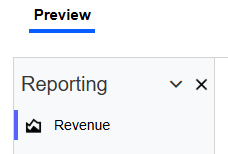
Indicator: Select to include a vertical indicator bar next to the selected item in the navigation bar.
-
Highlight: Select to highlight the background of the selected item in the navigation bar.
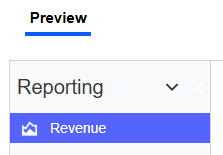
NOTE: The color listed in NavBarButtonIndicatorBackground on the Colors page is used for the vertical indicator bar or highlight. See Color Set Properties.
Indicator Size: If you selected Indicator as the Selected State Type, choose a length for the vertical bar: Tiny, Small, Medium, or Large.
Indicator Thickness: If you selected Indicator as the Selected State Type, choose a thickness for the vertical bar: Thin, Standard, or Thick.
Page Bar
These settings customize the display of the Pages in the page bar.
Button Width: Enter the number of pixels to set the width of the page bar tabs.
TIP: Increase the button width to accommodate longer page names.
Indicator Size: Select a length for the horizontal bar displayed under the selected page bar tab: Tiny, Small, Medium, or Large.
Indicator Thickness: Select a thickness for the horizontal bar displayed under the page bar tab: Thin, Standard, or Thick.
Apply Style Settings
After you configure style settings, apply them to a Genesis instance.
-
In the left panel, select the style settings. See Configure Style Settings.
-
Click the Save your changes. icon to apply the style and view the updates in the Preview tab.