Navigation
The page includes the following sections:
-
On the left panel, you can manage Application Groups, Navigation Groups, and Pages, add and configure content, and reorder the navigation tree and set defaults.
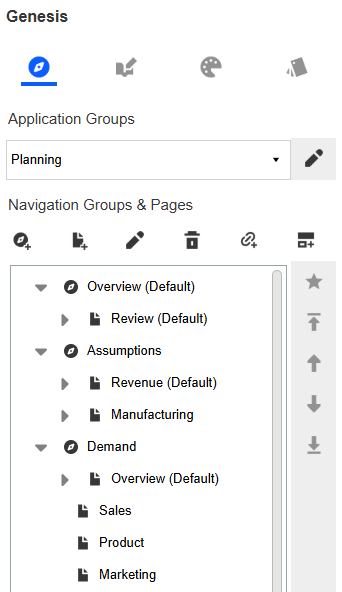
See Application Groups and Navigation Groups, Pages, and Content.
-
Select an item in the navigation tree. Then, to the right, you can select the Preview, Designer, and Content tabs to view and configure content.
In the upper right, you can set your preference to turn the preview on (click the Show Preview
 icon) or off (click the Hide Preview
  icon).
-
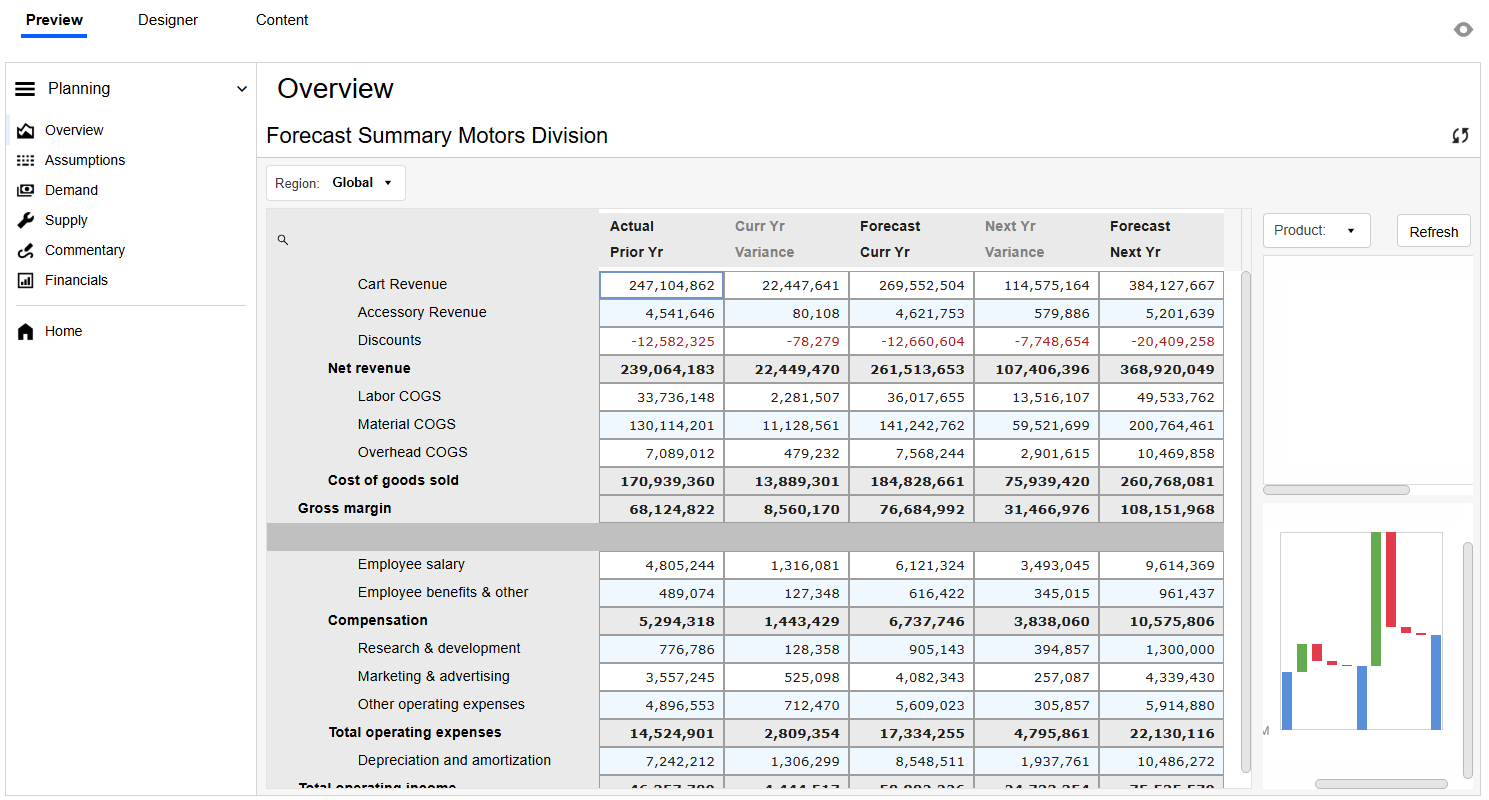
Preview: This tab displays a full preview of the end-user view of the selected content.
-
Designer: If you select a Content Block or a Page that has a Content Block injected, this tab displays the configuration options. Options are different for each Content Block.
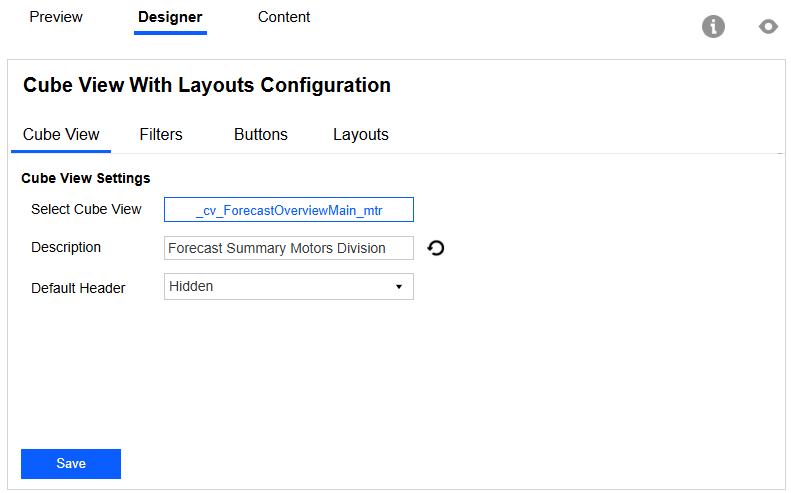
NOTE: If you select a Navigation Group, dashboard, or Page that has a dashboard linked, the Designer tab has no content.
NOTE: For configuration instructions, see the Content Block Guide in the Content Library on the Details page or on OneStream Solution Exchange.
To view details for the Content Block, click the Show block Info
 icon.
icon.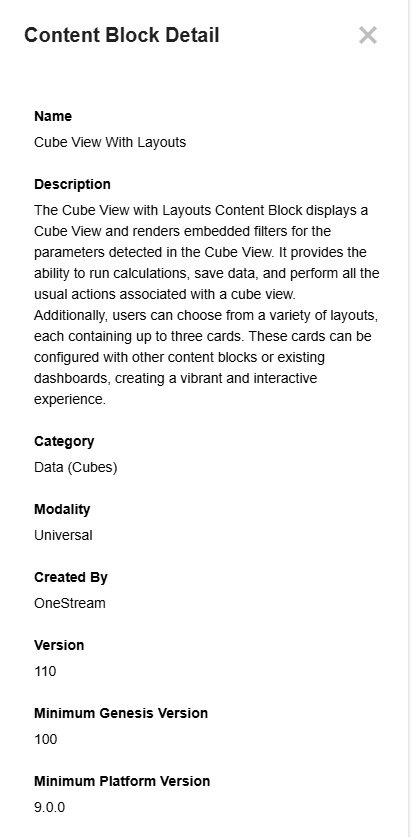
-
Content: This tab displays a rendered preview of the output of the selected content.
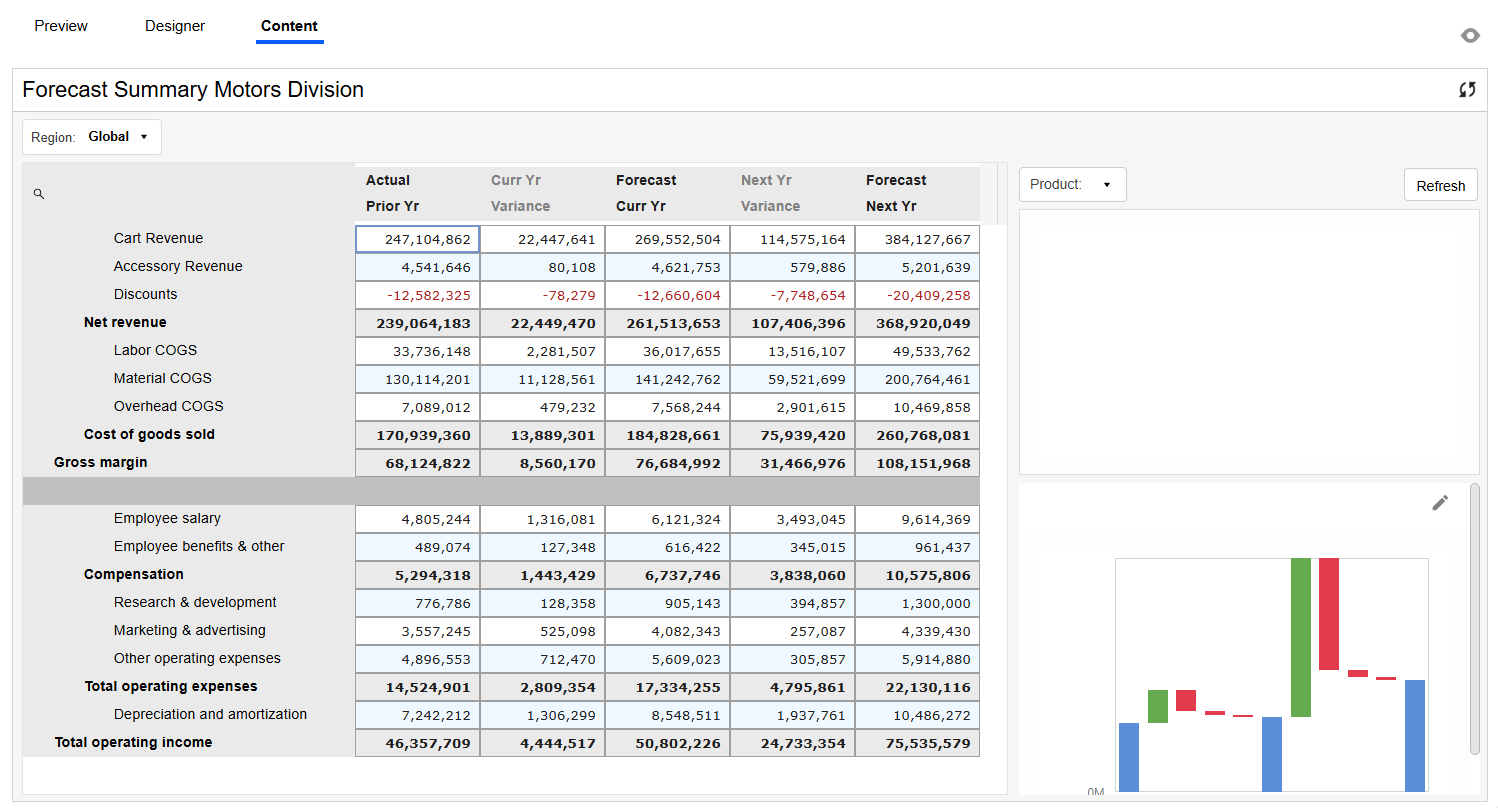
-


