A Navigation Group represents a grouping of one or more Pages. Use Navigation Groups to organize content into a process flow, for example, Revenue or Expense.
Pages display content and have a one-to-one relationship with that content. Content can be linked to a Page from existing dashboards or injected using Content Blocks.
NOTE: Because of the one-to-one relationship, you can only link one existing dashboard or inject one Content Block to each Page.
Use the toolbars and navigation tree to manage Navigation Groups and Pages. The navigation tree displays Navigation Groups as the top-level items, associated Pages as second-level child items, associated content items as third-level child items, and associated content within content items as fourth-level child items.
Use the toolbar on the navigation pane to create, edit, delete, link, and inject items.
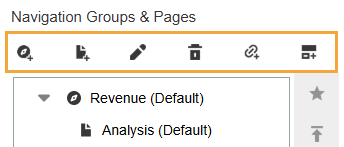
See the following sections:
Create a Navigation Group
-
Click the New Navigation Group icon.

-
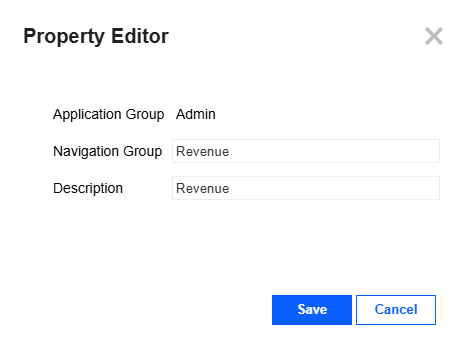
In the Property Editor slide-out panel, enter the following information.
- Navigation Group: Enter a new name, which will be used as an internal identifier for the Navigation Group.
NOTE: The name must be unique. It cannot be used for another Navigation Group in the same Application Group. The name must use alphanumeric characters (A–Z, a–z, and 0–9) and cannot include OneStream reserved words. See Reserved Words. Also, characters that are not valid and spaces are automatically removed.
TIP: If a Navigation Group has a long name, you can increase the navigation bar width to make space for it in the end-user view. See Navigation Bar.
-
Description: Add a description, which will display as the name in the navigation bar.
- Navigation Group: Enter a new name, which will be used as an internal identifier for the Navigation Group.
-
Click the Save button.
Create a Page
-
In the navigation tree, select a Navigation Group for the new Page.
-
Click the New Page icon.

-
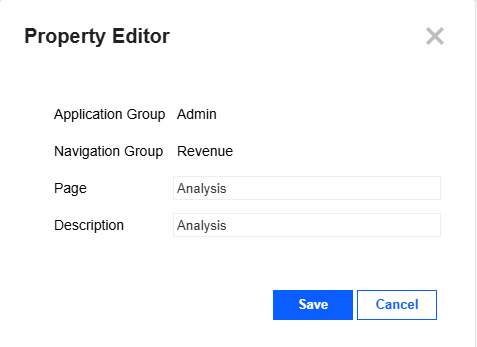
In the Property Editor slide-out panel, enter the following information.
-
Page: Enter a new name, which will be used as an internal identifier for the Page.
NOTE: The name must be unique. It cannot be used for another Page in the same Navigation Group. The name must use alphanumeric characters (A–Z, a–z, and 0–9) and cannot include OneStream reserved words. See Reserved Words. Also, characters that are not valid and spaces are automatically removed.
TIP: If a Page has a long name, you can increase the button width to make space for it in the end-user view. See Page Bar.
-
Description: Add a description, which will display as the name in the page bar.
-
-
Click the Save button.
Edit a Navigation Group or Page
-
In the navigation tree, select the Navigation Group or Page.
-
Click the Edit icon.

-
In the Property Editor slide-out panel, update the following settings.
Display Settings
-
Display Type: Select the display of the Navigation Group name in the navigation bar or the Page name in the page bar.
-
TextOnly: Displays the item as text only.
-
ImageOnly: Displays the item as an image only.
-
ImageAndTextLeftAuto: Displays both an image and text, and the horizontal space for each is automatically sized.
-
ImageAndTextLeft####: Displays both an image and text, and the horizontal space for each is represented by the numbers in percent. The first two numbers are for the image, and the second two numbers are for the text.
Example: ImageAndTextLeft3070 displays an image in 30% of the space and text in 70% of the space.
-
-
Display Divider Line Above Button (Navigation Group only): Select Yes to add a divider line above the Navigation Group name, or select No to hide it.
-
Description: Update the description, which will display as the item name.
-
ToolTip Text: Add text to display as a tooltip when a user hovers over the item name.
-
Font Size: Select the font size for the item name.
TIP: If you use a larger font size, you can increase the navigation bar width and button height or the page bar button width to make space for it in the end-user view. See Navigation Bar and Page Bar.
-
Image Name: If you selected a Display Type option that includes an image, select the image to display.
TIP: By default, each image has a black version and a white version. In this list, the images are grouped by name not color. To view the images, go to the Image Library. See Image Library. To set the image color, go to the Colors page. See Colors.
Security Settings: These settings define user access and the view for users who do not have access.
- Access Group: Select the security group that will have access to view this item. These security groups are in System > Security > Groups. Default Navigation Groups and Pages must be set to Everyone.
-
No Access Type: Select the view for users without access.
-
ShowBanner: Users without access will see the item listed in the navigation bar or page bar. But, when they select it, they will see the dashboard defined in the No Access Banner setting instead of the Content Block or linked dashboard.
-
Hide: Users without access will not see the item listed in the navigation bar or page bar.
-
-
No Access Banner: If you selected ShowBanner as the No Access Type, enter a dashboard name to display. The default is banner_NoAccess_(App)_(Main), which displays the text: NO ACCESS.
Visibility Settings
-
Hide: To hide the item in the navigation bar or page bar for all users, select Yes. This option is useful if you are preparing content that is not ready for display. When the content is ready for users to view, you can select No, then it will be visible to the selected Access Group.
Title Bar Settings (Navigation Group only)
-
Hide: Select Yes to hide the Navigation Group name as a title bar above the Page, or select No to display it.
-
Font Size: Select the font size for the Navigation Group name in the title bar.
Edit Button Actions
 : Click this icon to configure actions performed when the Navigation Group or Page is selected.
IMPORTANT: These actions only perform when a user selects a Navigation Group or Page. Default Navigation Groups and Pages open automatically without a user selecting them. Therefore, it is recommended to only apply actions to Navigation Groups and Pages that are not set as default. To update the default setting of a Navigation Group or Page, see Reorder List.
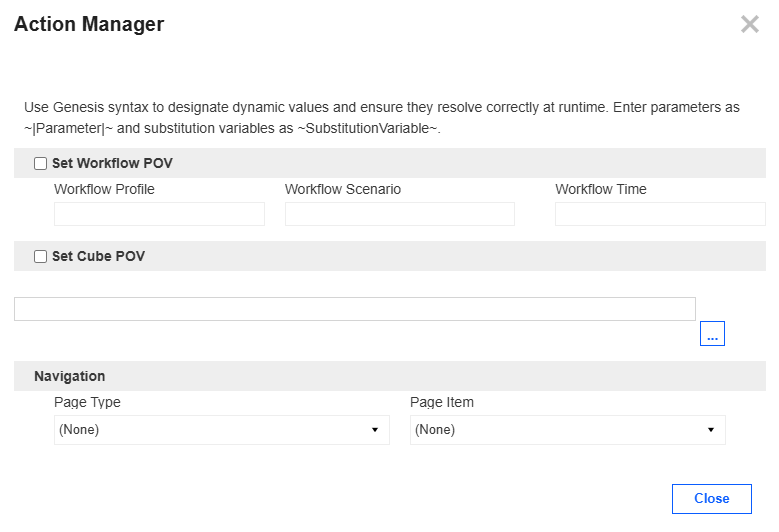
In the Action Manager slide-out panel, update the options and then click the Close button.
TIP: For the Set Workflow POV and Set Cube POV sections, use Genesis syntax (~|Parameter|~ and ~SubstitutionVariable~) to designate dynamic values and ensure they resolve correctly at runtime.
-
Set Workflow POV: Select this checkbox to set the Workflow POV. Enter the Workflow POV settings in the Workflow Profile, Workflow Scenario, and Workflow Time fields. Enter parameters as ~|Parameter|~ and substitution variables as ~SubstitutionVariable~.
-
Set Cube POV: Select this checkbox to set the Cube POV. Enter parameters as ~|Parameter|~ and substitution variables as ~SubstitutionVariable~. Click the Build POV from Member Filter ellipsis icon to open the Member Filter Builder slide-out panel. Add a Member Filter and then click the OK button.
-
Navigation: Use this option to navigate users to the designated location in OneStream. Select the location that users will view in the Page Type and Page Item drop-down menus.
IMPORTANT: If an action is assigned to a Navigation Group or Page, it takes precedence over assigned content, such as a Content Block or linked dashboard.
IMPORTANT: Some page types, such as Application Properties, are not available in the Modern Browser Experience. Users can only view these page types in the Windows application.
-
-
Click the Save button.
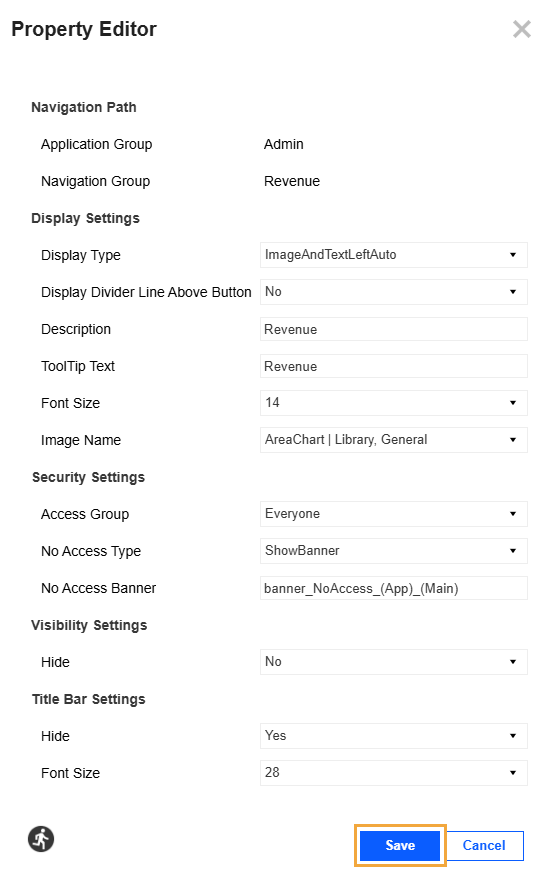
TIP: Click the Preview tab to see the end-user view with the updated settings.
Edit a Content Block Description
A Content Block description is the name of the Content Block that displays in the navigation trees on the Content Management and Navigation pages. Descriptions are optional. If no description is entered, the Maintenance Unit name displays instead.
To edit a Content Block description, follow these steps:
-
In the navigation tree, select the Content Block.
-
Click the Edit icon.
-
In the Block Settings slide-out panel, in the Description field, add or edit the description.
-
Click the Save button.
NOTE: Content Blocks are configured on the Designer tab. For instructions, see the Content Block Guide in the Content Library on the Details page.
Delete a Navigation Group, Page, or Content Item
If a parent item has an associated child item, it cannot be deleted. Remove all associated child items, then delete the parent item.
Default Navigation Groups and Pages cannot be deleted. Set another item as default, then delete the Navigation Group or Page. See Reorder List.
To delete a Navigation Group, Page, or content item, follow these steps:
-
In the navigation tree, select the Navigation Group, Page, or content item.
-
Click the Delete icon.

-
For a Content Block, confirm the deletion method:
-
To remove it from the current location only, click the Detach from this location button. The Content Block remains in the instance and can continue to be used.
-
To permanently delete it from the instance, click the Delete permanently button.
-
NOTE: If the Content Block has other parent items in the current instance, it will automatically detach it from the current location and notify you of the change.
Link Existing Content from a Dashboard
-
In the navigation tree, select the Page.
-
Click the Link an Existing Content Item from a Shared Workspace icon.

-
In the Shared Workspace Browser slide-out panel, select the dashboard from the Available Dashboards list.
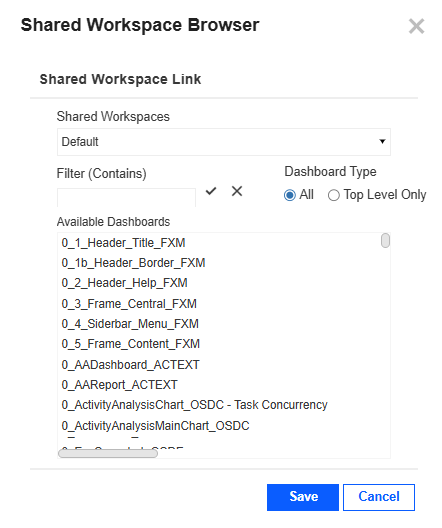
TIP: Use the Shared Workspaces drop-down menu, Filter (Contains) field, and Dashboard Type radio buttons to filter the results.
-
Click the Save button.
IMPORTANT: If the linked dashboard cannot display in the Preview tab, you will receive an error message and be unable to move forward. Click the Hide Preview  icon to turn off the preview. Then, in the navigation tree, select the content item (the linked dashboard), and click the Delete icon to remove it.
Inject a New Content Block
To inject a Content Block in a Page, follow these steps:
-
In the navigation tree, select the Page.
-
Click the Inject a New Basic Library Content Item icon.

-
In the Content Library slide-out panel, click the Add this Content Package
 icon next to the Content Block to add it.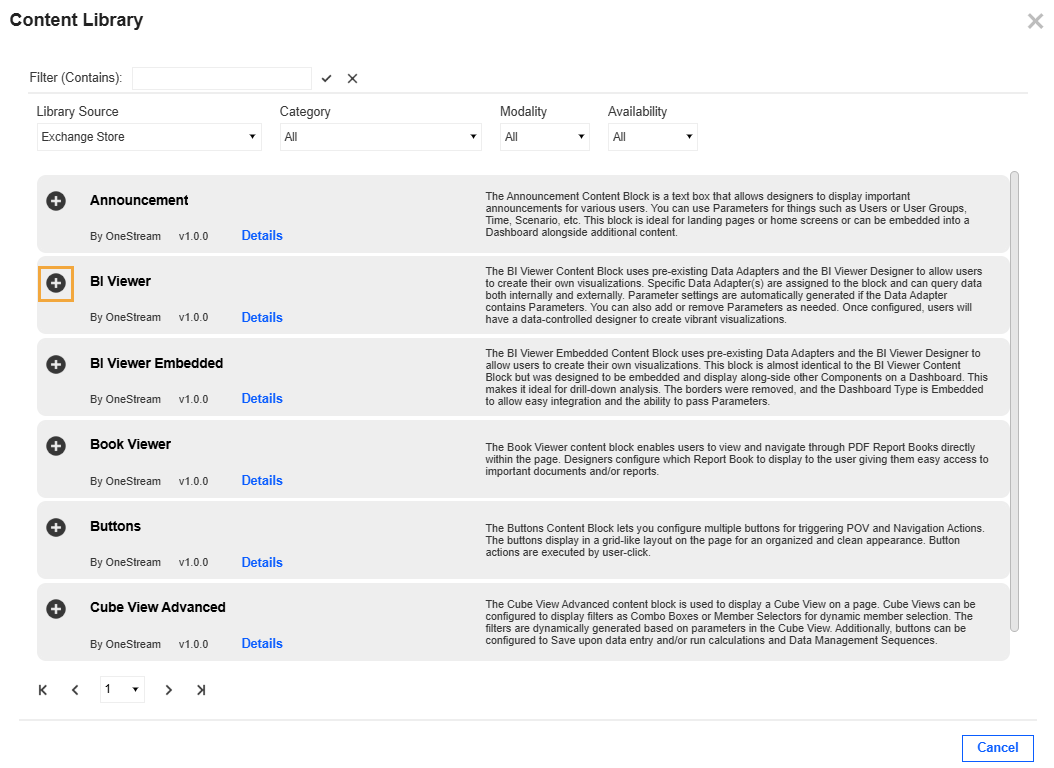
Items that are not available with the current license have a lock
 icon. Contact your representative for pricing information.
TIP: Use the Filter (Contains) field and the Library Source, Category, Modality, and Availability drop-down menus to filter for a Content Block.
TIP: Click Details for more information about the Content Block.
NOTE: Content Blocks are configured on the Designer tab. For instructions, see the Content Block Guide in the Content Library on the Details page.
Reorder List
Use the toolbar to the right of the navigation pane to reorder the list of items.
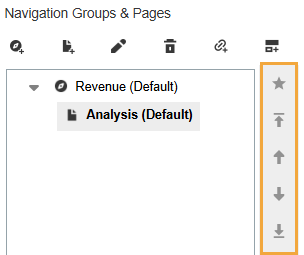
-
To define the default view for users in Genesis Navigation, select an item and then click the Set As Default
 icon. Then, the Navigation Group or Page displays by default when the parent item is selected.
 -
To move an item to display first in the navigation tree, select it and then click the Move To First
 icon.
icon. -
To move an item up in the navigation tree, select it and then click the Move Up
 icon.
icon. -
To move an item down in the navigation tree, select it and then click the Move Down
 icon.
icon. -
To move an item to display last in the navigation tree, select it and then click the Move To Last
 icon.
icon.


